member manual
member account actions
as a member you can sign or log into this website by clicking or tapping on the log-/sign-in button with the
 icon, situated at the top of each page in the navigation menu, on the top right.
on mobile devices (and devices with small screens) this button gets hidden within the
icon, situated at the top of each page in the navigation menu, on the top right.
on mobile devices (and devices with small screens) this button gets hidden within the burger menu, which
can be opened by tapping on the  button.
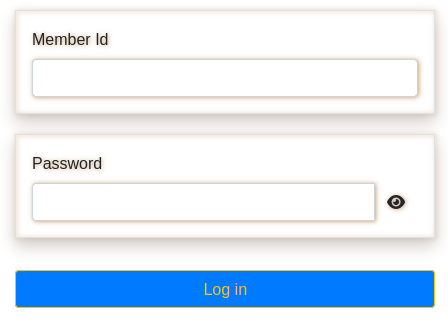
after clicking or tapping on the above log-in button the form (shown at the right) gets displayed. to authenticate you as a member enter your member id (instead of your name) and password.
after you entered your credentials and hit the Log in button you will get authenticated and recognized as a member, which provides additional functionality to you, depending on the permissions and rights you got granted.
as an authenticated member you see the two buttons  , at the place were the log-in button
() was situated (at the top right of the navigation bar):
, at the place were the log-in button
() was situated (at the top right of the navigation bar):
with the left one you can change your password. hitting/tapping the right one is logging/signing you out from this website.
member language
the page texts of this website, as well as the messages and announcements content added by members, are multilingual.
by default the three languages english, spanish and german are supported.
on the first visit of this website, the page texts will be displayed in the language of your device’s operating system. visitors and members can switch the language of the page texts with the following dropdown button, situated at the top left of the navigation bar:
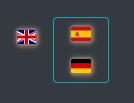
on pages that also display content added by members, like the member messages and announcements, are appearing extra buttons aside of the current language selector button. use these toggle buttons to hide/show member content written in extra languages (apart from the selected page text language). if a member content language got hidden then the related toggle button will appear a bit smaller and the language flag doesn’t show any glow effects.
the following screenshot does show an example of the language dropdown and toggle buttons in the navigation bar, where the user selected the Spanish page texts (represented by dropdown button with the Spanish flag on the left), and did hide the member content written in English, still showing the German member content:

member announcements
all announcements are grouped into categories, like for example Care, Coaching, Everyday Help or Handicraft.
another sub-group level is grouping the announcements within each category. this sub-groups are called category actions. commonly available actions are e.g. Request, Offer or Rentals.
the button at the top left of the following picture, labeled with Care, is (together with the category image on their right) representing the announcement category. by hitting this button the announcements within this category can be collapsed/hided (if they were shown) or expanded/shown (if they were hidden before):
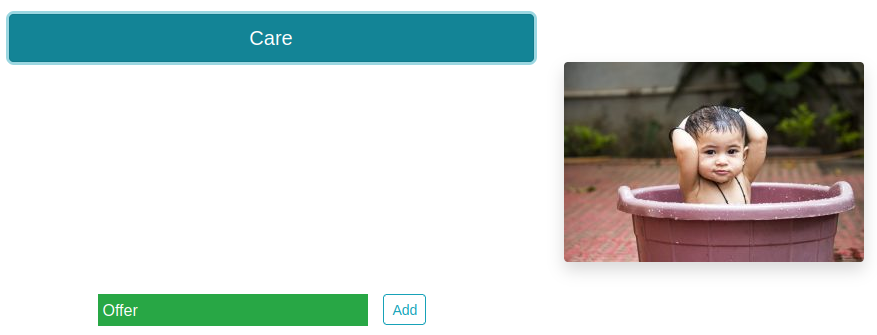
the announcement action (in the above example Offer) gets displayed underneath the category button.
announcement text edit controls
an authenticated member can create exactly one entry under each announcement category action.
rental, offer and request announcements can be added, updated and deleted directly by the member on the website with the two forms displayed underneath:

a new announcement text can be created with the Add button displayed to the right of a announcement category action. the language of a new announcement is associated to the category action under which it got created (and is therefore independent from the currently selected website language).
the text of an announcement can be entered or edited within the form as displayed underneath:
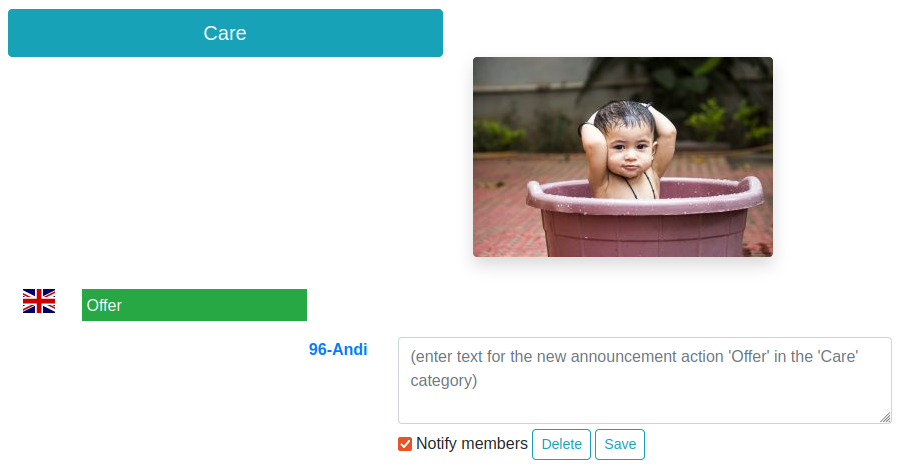
hit the Save button to add or edit/update the announcement text, or the Delete button to remove the announcement from the website.
Hint
remove the tick from the Notify members checkbox before you click on one of these two buttons to prevent the notification of the members after a change or deletion of an announcement, e.g. to not spam the configured member changes notifications channels / messenger group(s) on small/trivial corrections/changes of an announcement.
announcement display controls
visitors can filter the announcements by language and/or by an entered search text fragment. you as an authenticated members can additionally filter the announcements to only display those that you have created.
the picture underneath is showing the controls of the three provided filters, which are arranged in two rows:
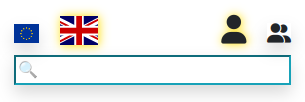
the first row consists of two filters, one on the left and another one on the right, implemented as radio button groups with two icons each. the currently chosen radio button icon is shown bigger and with a golden glow. tap or click on the smaller displayed icon to toggle the radio buttons and the respective filter.
with the radio buttons  on the left of the first row you can filter the announcements by
language. by default the announcements of all languages will be displayed. to only display announcements of the
currently chosen language click on the smaller country flag.
on the left of the first row you can filter the announcements by
language. by default the announcements of all languages will be displayed. to only display announcements of the
currently chosen language click on the smaller country flag.
Hint
to only hide announcements in a single member language use toggle buttons in the navigation bar.
to only display the announcements entered by yourself, click on the left button of the radio button group
 shown on the right of the first row.
enter a search text into the field of the second row to display only the announcements that are containing the entered text fragment. if the entered text represents a number then it will be interpreted as a member id and only the announcements published by the member with this member id will be displayed.
the following three buttons, shown at the bottom of all announcements, allow to expand or collapse the announcement categories all together:

a click on left button will expand all announcement categories. to collapse all categories click on the button on the right. the middle button is toggling the collapse state, so that all the expanded categories will be collapsed and the collapsed categories will be expanded.
member messages
you as an authenticated members can add or edit your own messages directly on the website.
to create a new message press/tap the  button at the top of this web page.
after hitting this button the following form gets displayed, which is also used to edit or delete a member message:
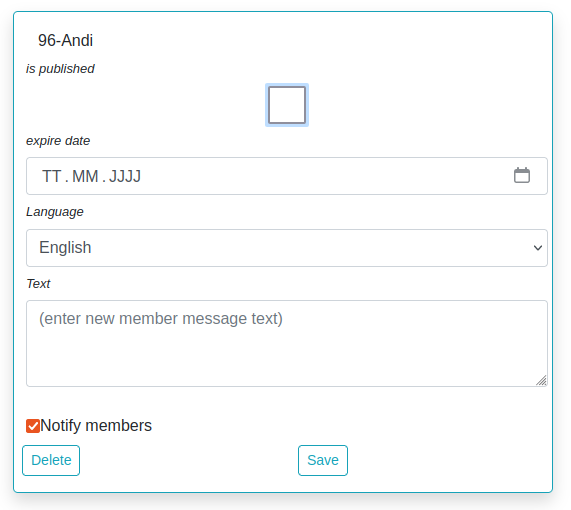
to edit a member message on a desktop computer double click on the message text. on mobile phones the message can be edited by either double-tap on the message text or after clicking the Edit button.
by checking the is published entry field a message can be classified as public. leaving this checkbox unchecked results in a private message. private messages are only visible for members, whereas public message are visible for every visitor of your association website.
a message can optionally have an expire date; if the current day’s date lies after the entered expiry date, then this message will no longer be shown in the news box.
new and edited member messages get also displayed within the news box (most recent ones first).
visitors will see only the message texts, whereas authenticated members see also the id, name and phone number of the member who wrote the message.
Hint
remove the tick from the Notify members checkbox to prevent the notification of the members on small/trivial corrections of a message, e.g. to not spam the configured member changes notifications channels / messenger groups.
news box
the scrollable news box (mostly placed at the top of the home CMS page) displays the nine most recent news of your association members (the very newest first). this includes newly added or edited and not expired member messages and any newly added or updated member announcements.
Hint
use the member language toggle buttons in the navigation bar to hide member content in other languages.
the handle icon  , situated at the bottom right corner of the news box, allows to resize it vertically.
tap on any news text within the news box to jump to another page to display more details for the represented member announcement or message.
authenticated members are also seeing the id and the name of the member which entered the announcement/message. on
desktop computers place your mouse pointer on the displayed id-name text to show the phone number of the member. on
mobile phones you can even tap on the displayed id-name text to initiate a phone call to this member.
members meeting box
this plug-in can be placed in any content/CMS page to display a small text with information on the next planned members meeting in the language selected by the user in the browser.
a authenticated member with the add members meetings permission will see this plug-in in edit mode with a text area
control and a checkbox for each supported language:
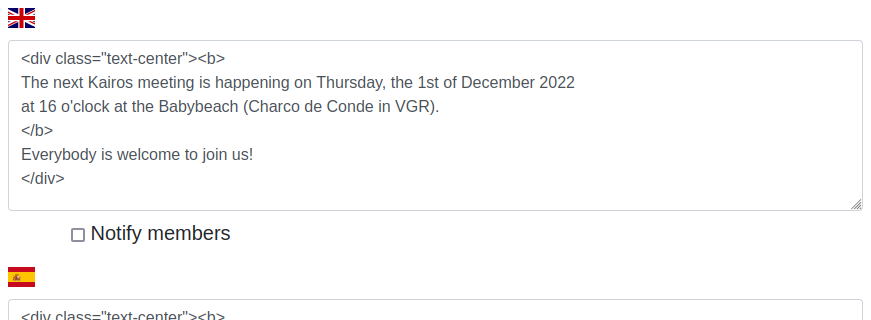
to highlight parts of the information text a few html tags (like b, a, i, pre or code) are supported (see
the doc-string of the method ae.notify.Notifications.send_telegram()).
all languages can be edited and saved with the button at the bottom of this plug-in. tick the Notify members checkbox to send a notification message to the messenger group of your association in the respective language.