administrator manual
administrators are members with additional rights granted to maintain:
pages content, menus and tool-tips
members data
announcement categories, actions and any requests/offers
member messages
member meetings
initial admission fee collection in the built-in member registration process
most of these tasks can only be done by page content administrators, whereas the last two tasks can be done by members with individual additional rights granted (see further down in the member permissions section).
as a page content administrator you are using an extra account to sign-in to get access to the
Django admin toolbar and menus.
the admin toolbar gets then displayed at the top of your browser window as a fixed overlay:

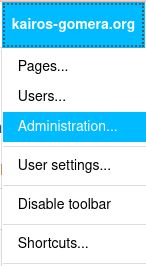
the most important menu in the admin toolbar is the site menu (by default titled as kairos-gomera.eu):
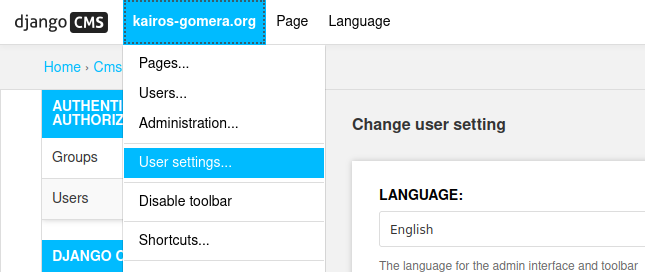
the toolbar language can be configured via the User settings… menu item, available from the site menu:
most administration tasks can be done via the Administration… menu item of the site menu. for more details check out the related documentation of Django and the Django CMS.
member administration
the id, name, email and phone number of a member of your association can be maintained within the two available Users forms, via the Administration… menu item of the site menu. the second Users (page) form of the DJANGO CMS admin group has additional fields used for administrators, which are not available in the first Users form under the AUTHENTICATION AND AUTHORIZATION admin group.
create a new member
to manually create a new in the Users (page) admin area first click on the blue Add User button (on the top right).
Note
a new member entry gets automatically if the member did sign up, directly on the website.
in the then upcoming user input form, enter the member id and (twice) the member password.
Note
if the user has not paid the fee, then add a hyphen character (-) in front of the member id and uncheck the Active checkbox (in the later displayed user edit form), .
after entering the user name and password in the user input form, click the blue Save on the bottom right, to display the user edit form (with all the other user fields).
then, in the user edit form, enter the member’s phone number in the LAST NAME field (in the format +cc nnn,
where cc is the country code and nnn is the national phone number).
deactivate also the Staff status checkbox (to prevent that a member account gets access to the admin area).
then, in the GROUPS section of the user edit form, associate the members group to the new member, by selecting the group in the AVAILABLE GROUPS list and click on the right-arrow to move it to the CHOSEN GROUPS list. more member permissions can be granted individually (see next section)
Hint
see the programmer manual on how to bulk create and update members on your website.
after a new member gets activated we normally sending a message to the member with his initial password and some information on how to use our website - an example:
A warm Welcome to Kairos!

My name is Andi and I look after our website at Kairos, which can be accessed
at https://kairosgomera.eu.pythonanywhere.com.

To authenticate yourself, click on the bust symbol (top right of our website, in the menu).
Then, in the form that appears, please enter your membership number (___), and in the
field below your initial password (_______) (case sensitive!).

After your authentication you can add your offers and requests in the menus 'Messages' and
'Announcements' and view the contact details of all other members in the menu 'Members'.
Please do not forget to change your initial password.

Further information on how to use our website can be found here:
https://kairos.readthedocs.io/en/latest/member_manual.html.

If you have any problems, questions or suggestions about the website, I would be very happy
to receive a message/call (+34 608 697 146) or email (aecker2@gmail.com).
an example of a welcome message in Spanish:
¡Bienvenido a Kairos!

Mi nombre es Andi y me ocupo de nuestro sitio web en Kairos,
a la que puedes acceder en https://kairosgomera.eu.pythonanywhere.com.

Para autentificarte, primero haz clic en el símbolo del busto/maniquí
(en la parte superior derecha de nuestro sitio web, en el menú).
A continuación, en el formulario que aparece, introduzca en el campo Nombre de usuario tu
número de socio (___) y en el campo debajo tu contraseña inicial (_______)
(tenga en cuenta que distingue entre mayúsculas y minúsculas).

Una vez autentificado, podrás añadir tus ofertas y solicitudes en los menús "Mensajes"
y "Anuncios", y ver los datos de contacto de todos los demás miembros en el
menú "Miembros". No olvides cambiar tu contraseña inicial.

Encontrarás más información para el usuario - lamentablemente hasta ahora sólo en
inglés - aquí: https://kairos.readthedocs.io/en/latest/member_manual.html.

Si tienes algún problema, una pregunta o una sugerencia sobre el sitio web le agradecería si
me envias un mensaje/llamada (+34 608 69 71 46) o un correo electrónico (aecker2@gmail.com).
an example of a welcome message in German:
Herzlich willkommen zu Kairos!

Mein Name ist Andi und ich kümmere mich bei Kairos um unsere Website,
die unter https://kairosgomera.eu.pythonanywhere.com erreichbar ist.

Zur Authentifizierung klicke zuerst auf das Büste-/Männchen-Symbol
(oben rechts auf unserer Website, im Menü).
Gib dann bitte im daraufhin erscheinenden Formular, in das obere Feld, deine
Mitgliedsnummer (___) und darunter Dein initiales Passwort (_______)
ein (bitte Groß-/Kleinschreibung beachten!).

Nach Deiner Authentifizierung kannst Du in den Menüs `Mitteilungen` und `Inserate`
Deine Angebote und Nachfragen hinzufügen und im Menü `Mitglieder` die Kontaktdaten
aller anderen Mitglieder einsehen. Vergiss bitte nicht Dein initiales Passwort zu ändern.

Weitere Benutzer-Infos findest Du - leider bisher nur in Englisch - hier:
https://kairos.readthedocs.io/en/latest/member_manual.html.

Falls Du Probleme, Fragen oder Anregungen zur Website hast, würde ich mich über eine
Nachricht/Anruf (+34 608 69 71 46) oder Email (aecker2@gmail.com) sehr freuen.
member permissions
the built-in user registration process and bulk load process are adding a member automatically to the members user group, which results in the following member permissions:
perms.mbr_announcements.add_memberannouncement: add an announcement.
perms.mbr_announcements.change_memberannouncement: edit an announcement.
perms.mbr_announcements.delete_memberannouncement: delete an announcement.
perms.mbr_messages.add_membermessage: add a message.
perms.mbr_messages.change_membermessage: change a message.
perms.mbr_messages.delete_membermessage: delete a message.
individual member accounts can have the following additional admin permissions:
perms.auth.add_user (auth | users | add): collect the admission fees in the sign-up process for new members.
perms.mbr_meeting_plugin.add_membermeeting (mbr_meeting_plugin | member meeting | add): maintain the information shown by the
members meeting boxplugin regarding the next association meeting.
a second/separate user account has to be created for members with an admin role, to manage the website pages and their content. only these admin accounts should have the is_staff field of the user record set to True. in contrary to “normal” members the username field of a page content admin account should contain the first name of the member (instead of a member id).
page content administration
the website pages and their contents are freely adaptable to the needs and rules of your association. their maintenance can be done directly on this website by staff members with special administration permissions, and with the help of the tools provided by the Django CMS.
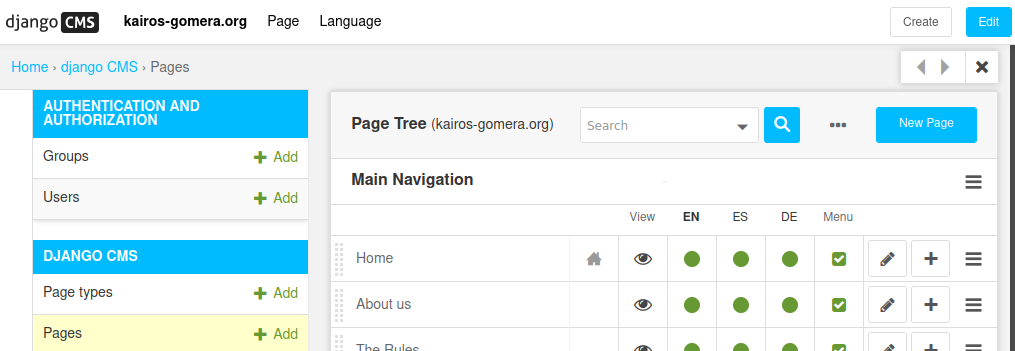
each CMS page gets configured by its page settings and the content. the page settings attributes of all the CMS pages, available in your website, are maintainable via the Pages… item of the site menu:
to change the content and structure of a displayed CMS page, you first have to activate the edit mode by clicking on the
 button, situated at the right of the
 admin toolbar.
only in the edit mode the page structure button  , situated at the very right of the
admin toolbar, gets enabled. after a click on this button a drop-down window is displaying the structure
of the page content and allows you to reorder and edit the parts of the currently selected CMS page.
Note
don’t forget to publish the changes from within the pages admin page.
check out the page admin documentation of the Django CMS for more information on changing the attribute settings, structure and content of a CMS page.
default pages and reverse ids
the following default CMS pages are already created but can be deleted or extended to adopt the website to your association.
reverse id |
slug (path) |
Menü-name |
menu title |
nombre de menu |
|---|---|---|---|---|
0_hl |
home (/) |
Startseite |
Home |
Inicio |
10 |
about |
Über uns |
About us |
Sobre nosotros |
20 |
rules |
Regeln |
Rules |
Reglas |
60 |
philosophy |
Philosophie |
Philosophy |
Filosofía |
70_hl |
announcements |
Inserate |
Announcements |
Anuncios |
90_hl |
messages |
Mitteilungen |
Messages |
Mensajes |
96 |
mbr-list (members/list) |
Mitglieder |
Members |
Miembros |
data_collection |
data-collection |
Datenerhebung |
Data Collection |
recogida de datos |
legal_notice |
legal-notice |
Impressum |
Legal Notice |
Aviso Legal |
mbr_signup |
mbr-signup (signup/member) |
Werde Mitglied |
Member Signup |
Hacerte Socio |
privacy_policy |
privacy-policy |
Datenschutzerklärung |
Privacy policy |
Política de privacidad |
every CMS page provides an attribute reverse_id that can be specified in the admin user interface by
an administrator in the ID field of the Advanced Settings of each CMS page.
the string value of this reverse_id has to be unique, and gets used to order the pages in the menu.
adding the suffix marker _hl (hide-able languages) to the reverse id of a CMS page will display
extra buttons in the navigation bar, to allow the user to hide member content in other/extra languages.
in the above table the home page, as well as the member announcements and member messages pages are having this reverse id suffix because these pages can contain member content in other languages apart from the selected language.
page content plug-ins
the data added by your association members by publishing message and announcements get stored in the integrated database of this website. the following CMS plug-ins can be integrated at any page of your website to display this data and allow your members an easy maintenance of this data:
member announcements- to display and search for announcements, and allowing members to add, edit and delete announcements.
member messages- to display messages, and allowing members to add, edit and delete messages.
news box- to display the most recent member messages as well as the most recent announcements.
members meeting box- to display the next members meeting, and allowing members with special permissions to edit the meetings dates and invitations texts for each supported language.
page link- to place a cross reference to any other page of your website.
the ids, names and phone numbers of members, shown by these plug-ins, are only visible for authenticated members. visitors of this website can see only explicitly published announcement/message texts.
announcement categories and action administration
announcement categories and actions are created and maintained within the two edit forms of the Django admin site/area:
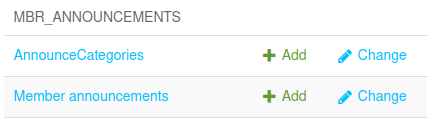
the first edit form (AnnounceCategories) allows you to add or change all announcement categories. the data of each category consists of a category name and a category picture.
with the second edit form (Member announcements) you can edit the announcements created by your members. also the creation of the first announcement item of a new announcement category or announcement action has to be done here.